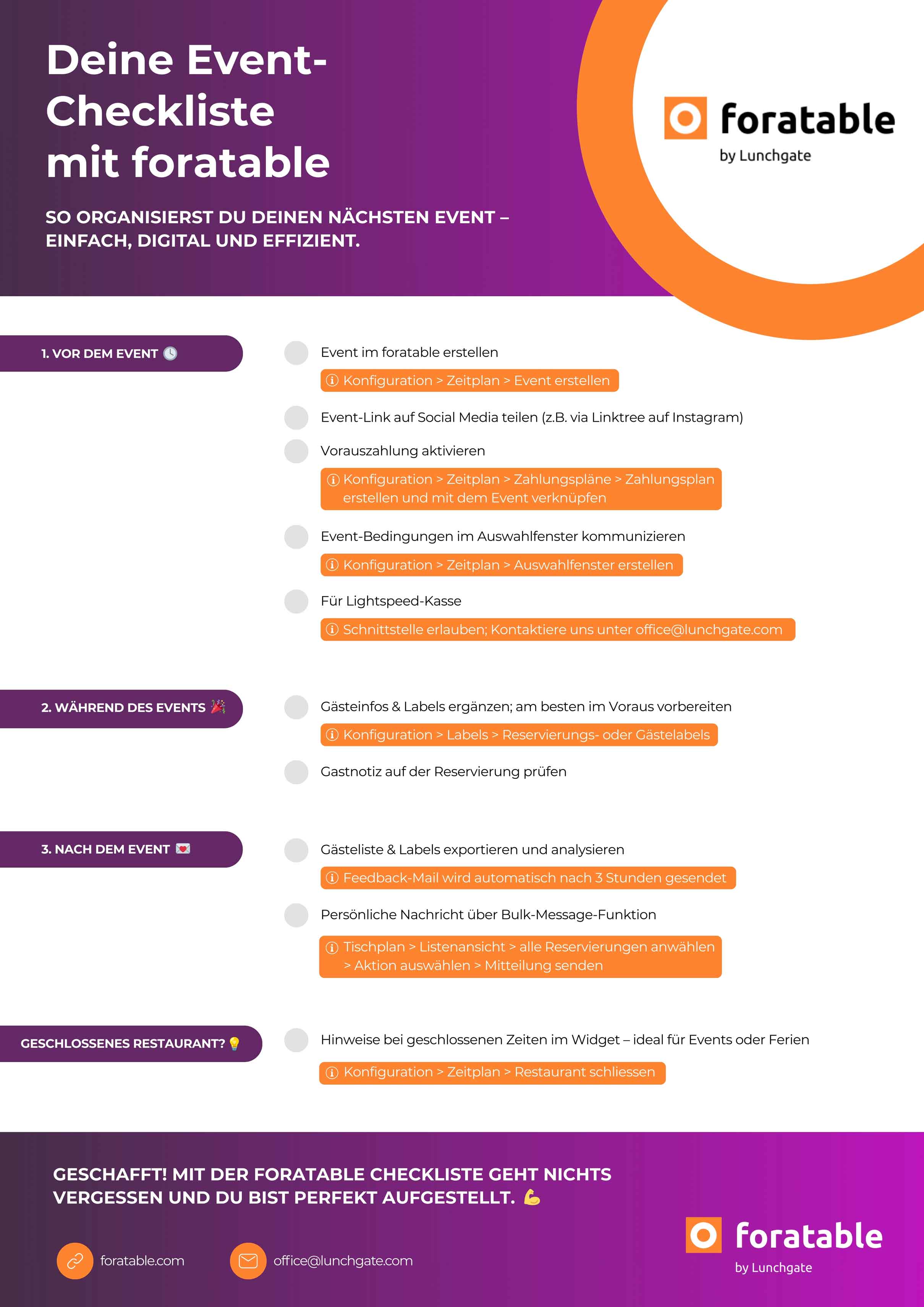
Whether it's brunch, a wine tasting, or a New Year's Eve dinner – a successful event requires good planning. With our checklist (see below), you can make the most of your reservation system – before, during, and after the event.
🟣 Create your event in foratable
Set up your event directly in foratable so it’s visible in the widget and guests can easily book online.
🟣 Boost visibility on social media
Be sure to link your event on social media – for example, via a Linktree on Instagram. This way, guests can go straight to booking.
🟣 Enable prepayment with foratable PAY
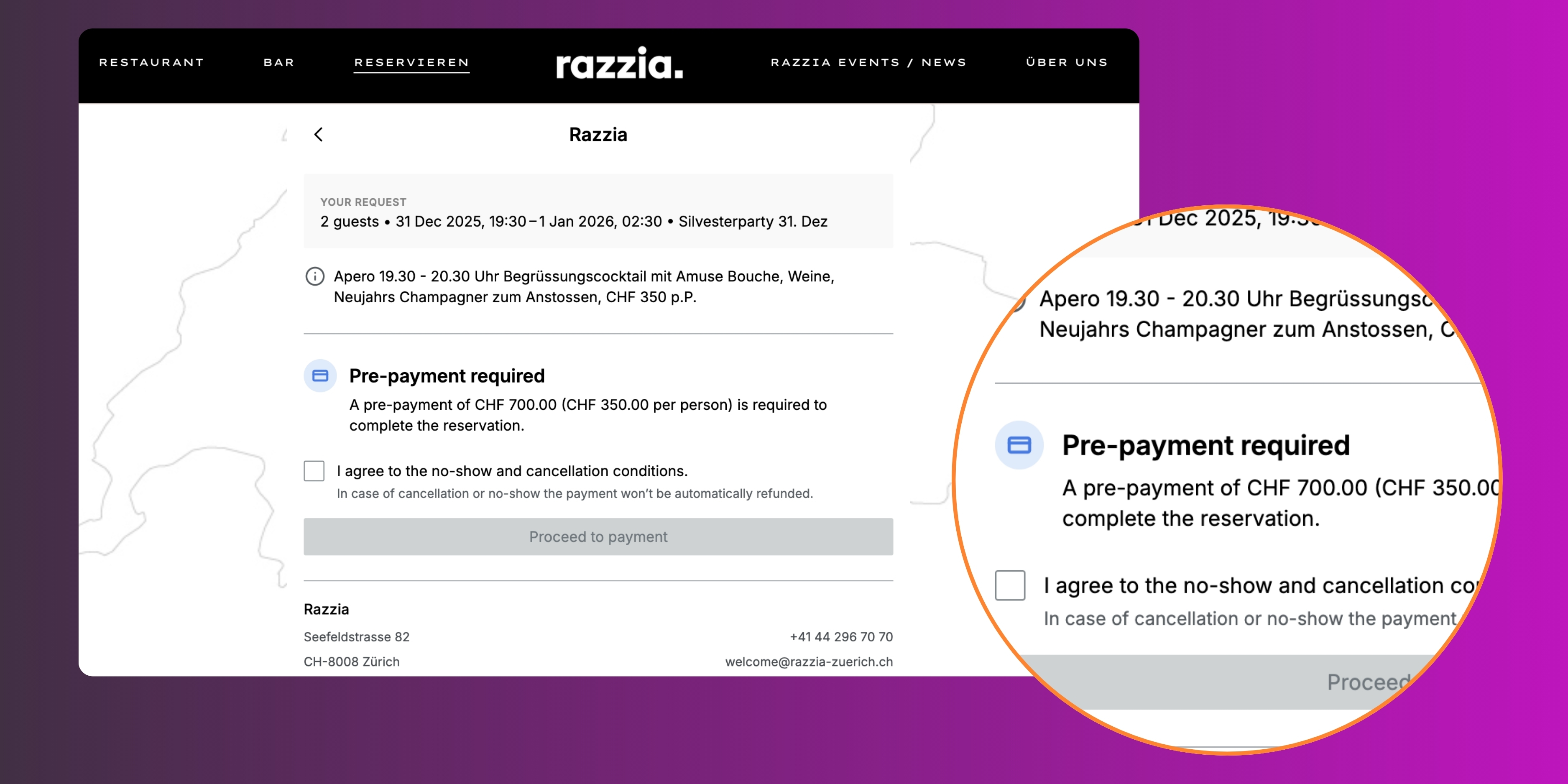
With foratable PAY you can easily activate a prepayment or credit card guarantee for your event shift – directly in your reservation system. To use foratable PAY, you need an e-commerce contract with an acquirer such as nexi, Worldline or Wallee. Please allow a few weeks of lead time for this.
Tip: Once set up, you can define the payment plan for each event shift individually – e.g., full prepayment or a partial amount for confirmation.
🟣 Selection window
.jpg)
Don't want your guests to pay in advance? No problem – use the selection window to clearly inform them of your event terms (e.g., "Fixed menu CHF 150 per person, no à la carte option").
🟣 Check POS integration
If your POS system (Lightspeed or HelloTess) is connected to foratable, you can save revenue directly to the guest profile – perfect for future segmentation.
Tip: At foratable, POS integrations are free!
🟣 Get to know your guests better
Use the event to learn more about your guests. Note any special details and assign labels (e.g., "wine lover," "gluten-free allergy," "corporate client," or whatever fits your concept).
.jpg)
🟣 Keep an eye on the comments field
Check the notes from reservations before service starts to provide a personalized and seamless guest experience.
🟣 Use data smartly
Have you updated all your labels? Perfect. Export your guest list and ask an AI for ideas on which campaigns or offers might be a good fit. Note: do not upload any guest data!
🟣 Gather feedback
Send a few hours after the event your feedback email automatically to collect reviews and honest feedback.
🟣 Use bulk messaging
.jpg)
With the "Send message" feature in the image system, you can send a link to a photo gallery to all your guests at once after the event. Simply use the bulk message function in your reservation overview – fast, easy, and sent directly to all guests.
.jpg)
Live as of this week: You can now display custom notes in the widget for blocked shifts or closed periods – visible to guests who would have liked to book. Perfect for exclusive events, company holidays, or alternative booking methods.
With the right preparation and the right tools, your event will not only be less stressful but also data-rich – leading to more repeat customers and satisfied guests.
In our checklist, we have a direct path to the system's features integrated, so you can quickly find all settings and tools and apply them right away.