Insights: Evaluating reservations and shifts
- With the Insights you can analyze reservations by time period, source, and guest or reservation level
- The shift overview shows you the current status of your shifts and is particularly helpful if you manage multiple restaurants
With the Insights in foratable, you get a quick overview of your reservation data and the status of your shifts.
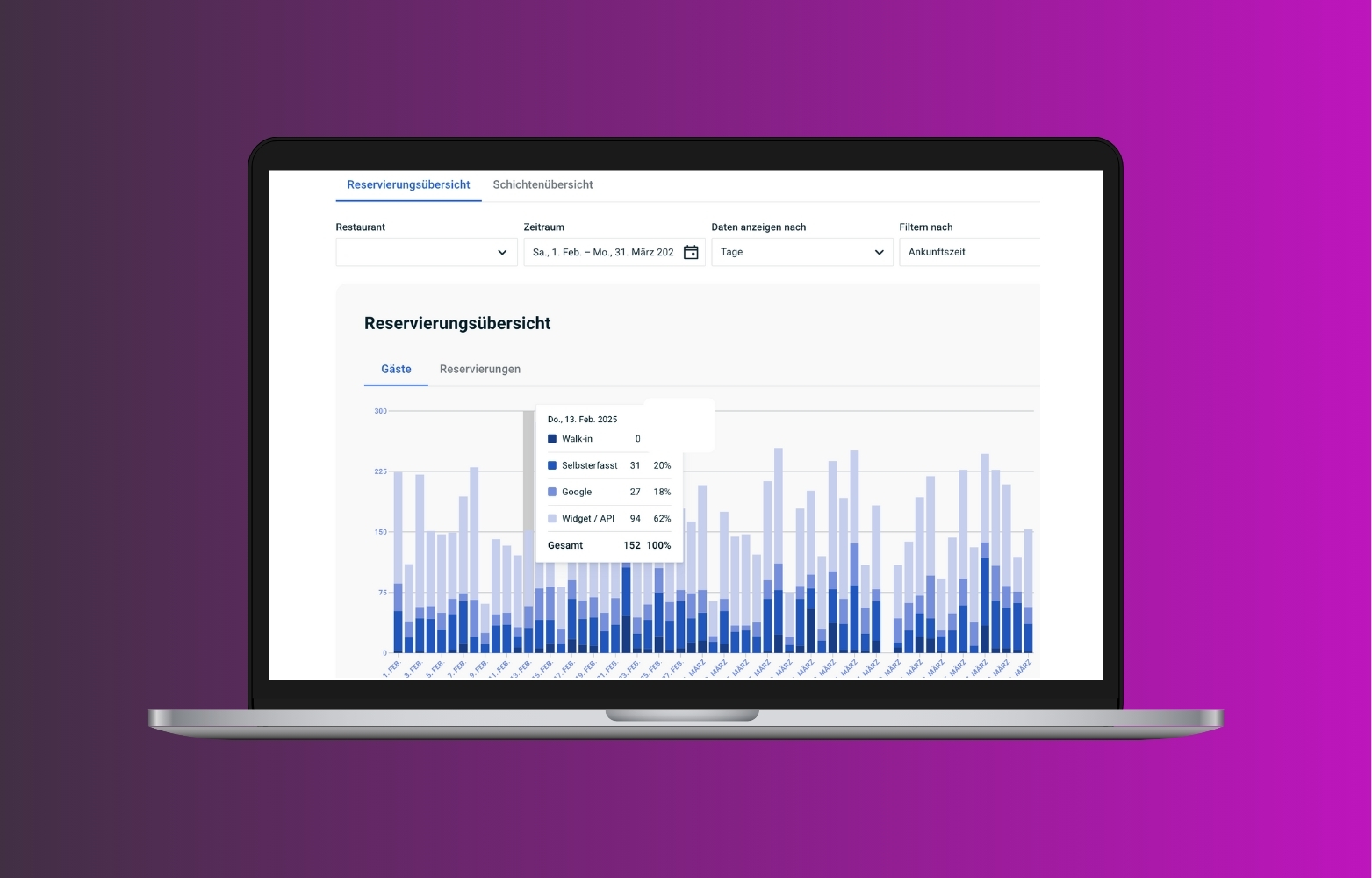
The insights are divided into two areas:
- Reservation overview
- shift overview
Important: Canceled, no-show, and rejected reservations are not included in these statistics.
A. Reservation overview
In the Reservation overview you can view your data either at the guest level or at the reservation level .
This allows you, for example, to analyze which sources your guests and reservations are coming from.
The four sources are:
- Walk-in
- Self-entered
- Widget / API
You can see the percentage share that each individual source contributes to your guests or reservations.
B. Filtering reservation data
You can flexibly customize the reservation overview and filter it according to various criteria.
Among other things, you can:
- select a specific time period
- view the data by day
- week
- month
- or year display
Additionally, you can determine whether the analysis is based on the:
- creation date
- or the arrival time
should be based on.
This allows you to analyze different trends depending on the question you are asking.
Example:
If you want to know when reservations actually take place, the view by arrival time is useful. If you want to analyze when guests make their reservations, you can evaluate by creation date .
C. Compare sources
A particularly important part of the reservation overview is the analysis of your reservation channels.
This allows you to see:
- which channel brings in the most guests
- what percentage of reservations come from Google
- what share your own widget or API accounts for
- how many reservations your team enters themselves
- what percentage walk-ins account for
This gives you a better sense of which channels are most relevant to your business.
D. Shift overview
The shift overview helps you quickly check the current status of your shifts.
This is especially practical if you manage multiple restaurants or a restaurant group .
You can see at a glance which shifts:
- are blocked
- are blocked for online reservations only
- are fully booked
- are in bad weather mode
- are closed
This way, you don't have to open every restaurant and every shift individually to check the current status.
E. Shift overview time frame
You can choose from various time frames for the shift overview:
- Daily
- 7 days
- 14 days
This allows you to quickly check both current operations and the coming days.
Especially when managing multiple locations, this view helps you identify discrepancies or closed shifts early on.
Our recommendation
Use the Reservation overviewto better understand where your guests are coming from and how your reservation channels are performing.
The shift overview is particularly well-suited for operational control – especially if you manage multiple restaurants.