Areas & Tables
- Under Areas and Tables map out your restaurant's layout and design your visual floor plan
- With Table combinations and automatic table assignment settings define which seating arrangements are possible and how reservations are distributed
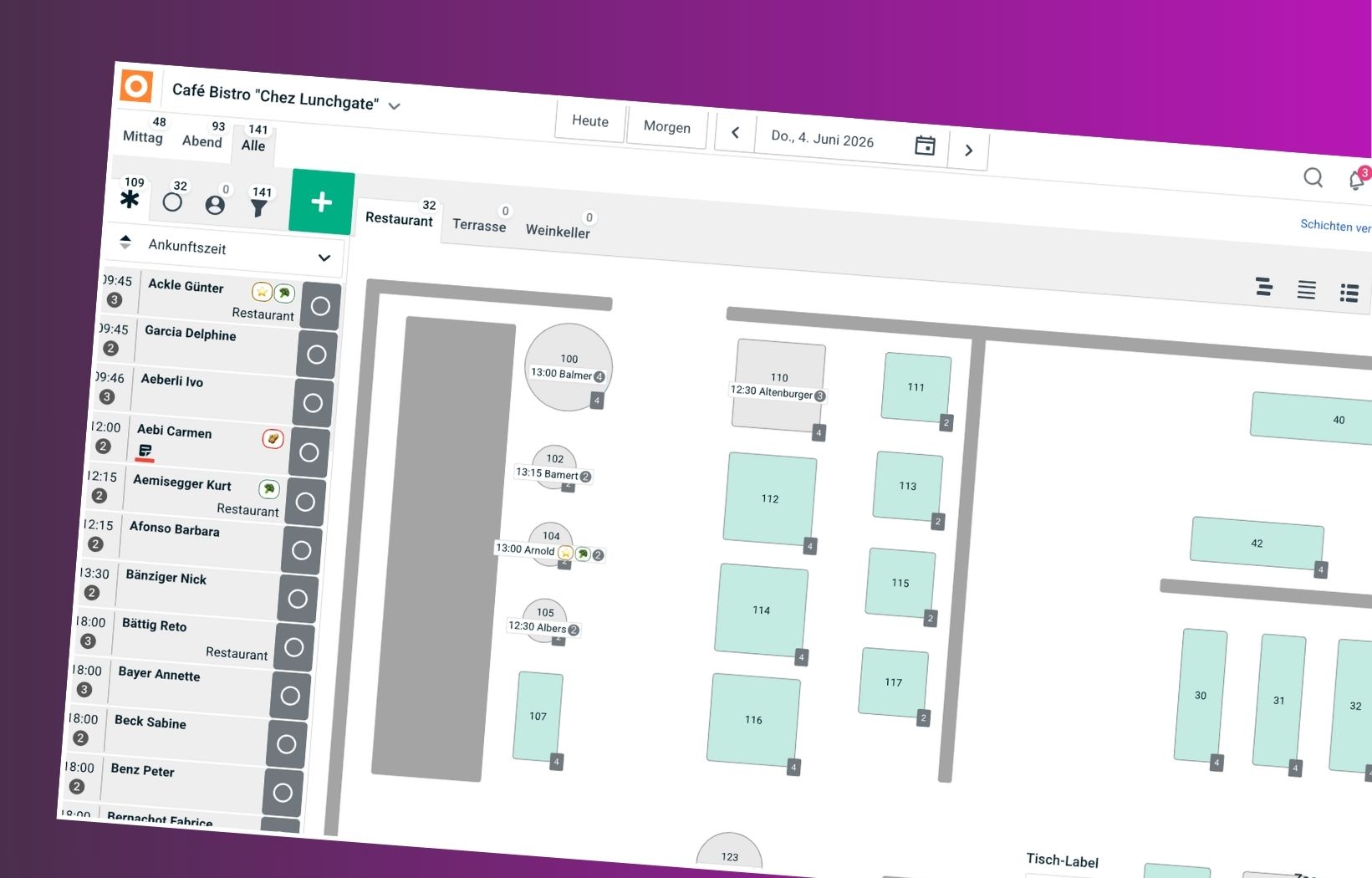
Under Areas and Tables map your restaurant's actual layout in foratable. The more accurately this configuration reflects reality, the better the system can assist with table assignments and seating later on.
A. Create areas
Under Areas you can define as many areas of your restaurant as you like.
At least one area must exist – for example, simply Restaurant.
Other possible areas include:
- Terrace
- Bar
- Ground floor
- Upper floor
- Conservatory
- separate room
With the Drag-and-drop functionality you can arrange the areas in a logical order. This order is also used later in the graphical floor plan and helps you to display the various areas clearly.
B. Creating tables and elements in the floor plan
Under Tables you design the graphical floor plan for each area.
You can place tables and additional elements to ensure the layout matches your restaurant as accurately as possible.
For each table, you can define details such as:
- Table number
- Number of guests
- Position in the room
The display of table number and number of guests automatically adjusts to the screen size of your device. This ensures your floor plan remains clear and easy to read on different screens.
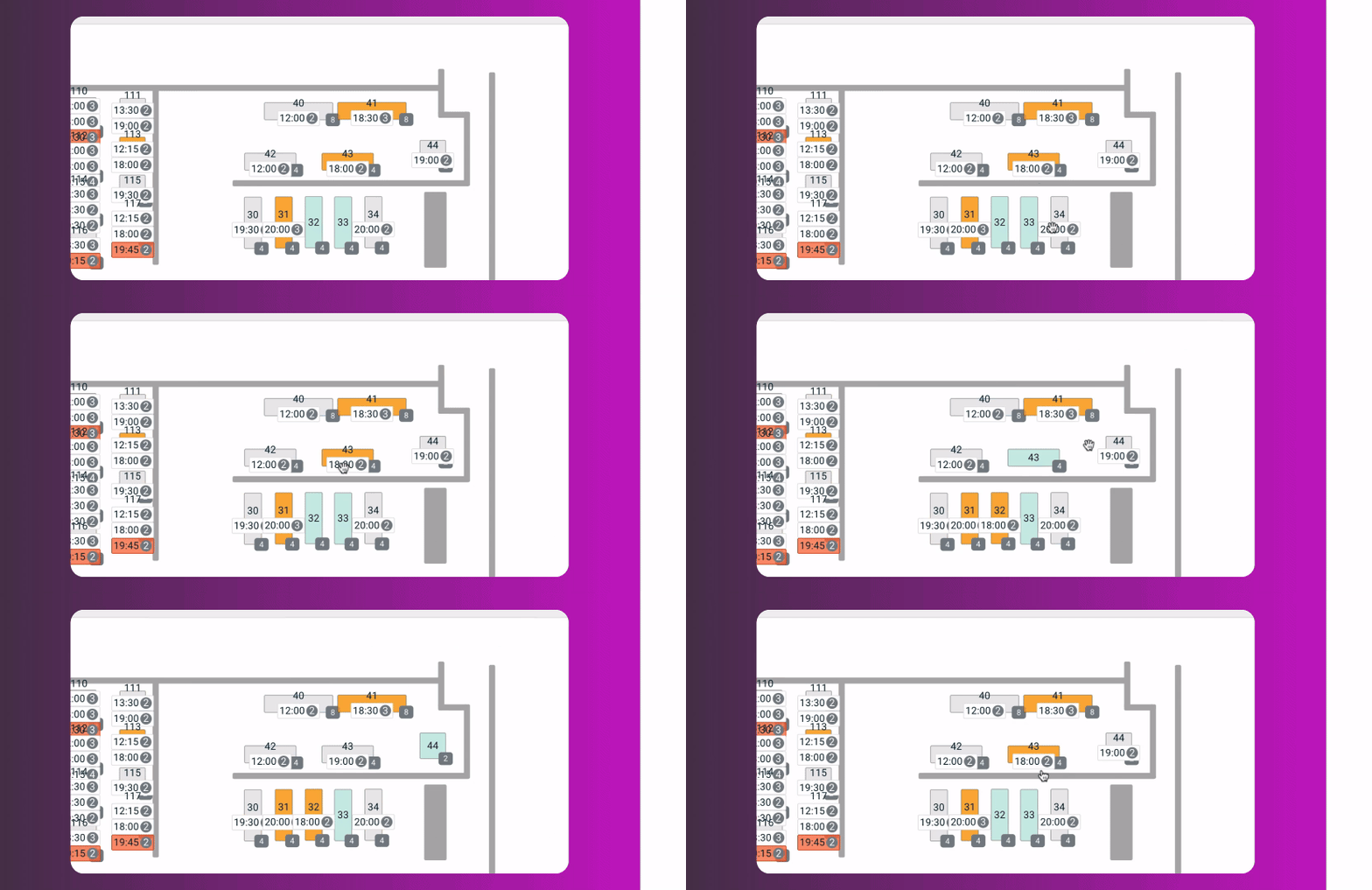
Editing tables and elements faster
In the floor plan editor, you can select single or multiple elements and edit them together.
Among other things, you can:
- duplicate tables and elements via copy & paste duplizieren
- select multiple elements at the same time
- duplicate selected elements
- use various alignment options
- Move and rearrange elements in the floor plan
This allows you to create and adjust your plan much faster, especially for larger floor plans.
Using additional elements
In addition to tables, you can insert other elements to make your room layout as realistic as possible.
For example:
- Windows
- Walls or partitions
- Other orientation elements
When creating your floor plan, always consider:
What seating options are actually available in my restaurant?
If tables can be moved during service or pushed together for larger groups, you should also account for these possibilities in foratable.
C. Define table combinations
In the next tab, Table combinations you define which tables in your restaurant can be combined with one another.
You know your restaurant best and know which table combinations are actually practical and possible in your space.
Therefore, only set up combinations that your service team can actually implement on-site.
Example:
Table 1 seats 2 people, and so does Table 2. If both tables can be pushed together in the restaurant, you can also set up this combination in foratable.
This step is particularly important if you use automatic table assignment .
The better the possible table combinations are mapped, the more effectively foratable can accommodate suitable tables for different group sizes.
Important: Even with stored table combinations, foratable will not exceed the capacity you have defined for the respective shift.
D. Settings for table combinations and automatic table assignment
In the final tab Settings you define how foratable should handle automatic table combinations and automatic table assignment.
Automatic table combinations
foratable can automatically create table combinations based on various information.
Combinations based on table layout
Tables that are positioned close to each other in the graphical floor plan and can be combined can be automatically grouped into table combinations.
This allows the system to take the actual spatial arrangement of your tables into account.
Combinations based on past table assignments
foratable can also take into account table combinations that have already been used for past reservations.
This allows the system to derive further sensible combinations from previous table assignments.
Rules for automatic table assignment
Under Settings you also determine the rules according to which reservations should be automatically assigned to tables.
Prioritize by creation time
If this setting is active, the automatic table assignment works according to the first-come, first-served principle.
As a result, earlier reservations are given preference for tables with higher priority.
You can define how foratable should handle the automatic distribution of your reservations.
Our recommendation
Take some time when setting up your graphical floor plan to map your actual layout as accurately as possible.
Pay particular attention to the following:
- Table sizes are correctly entered
- Table positions reflect reality as closely as possible
- Only actually possible table combinations are used
- Flexible combinations for larger groups are taken into account
- Automatic table assignment settings match your service workflow
A well-configured floor plan is the foundation for your team to work efficiently during service and ensures that automatic table assignment finds the most suitable placements.