Search, filter, and export reservations
- In the Reservations view, you can filter your reservations by time period, labels, status, experiences, and other criteria.
- Filtered reservations can be edited directly and exported as a CSV file
The Reservations view is available in both the Professional Plan and the Basic Plan .
Here you can find all your restaurant's reservations and filter, search, and export them as needed.
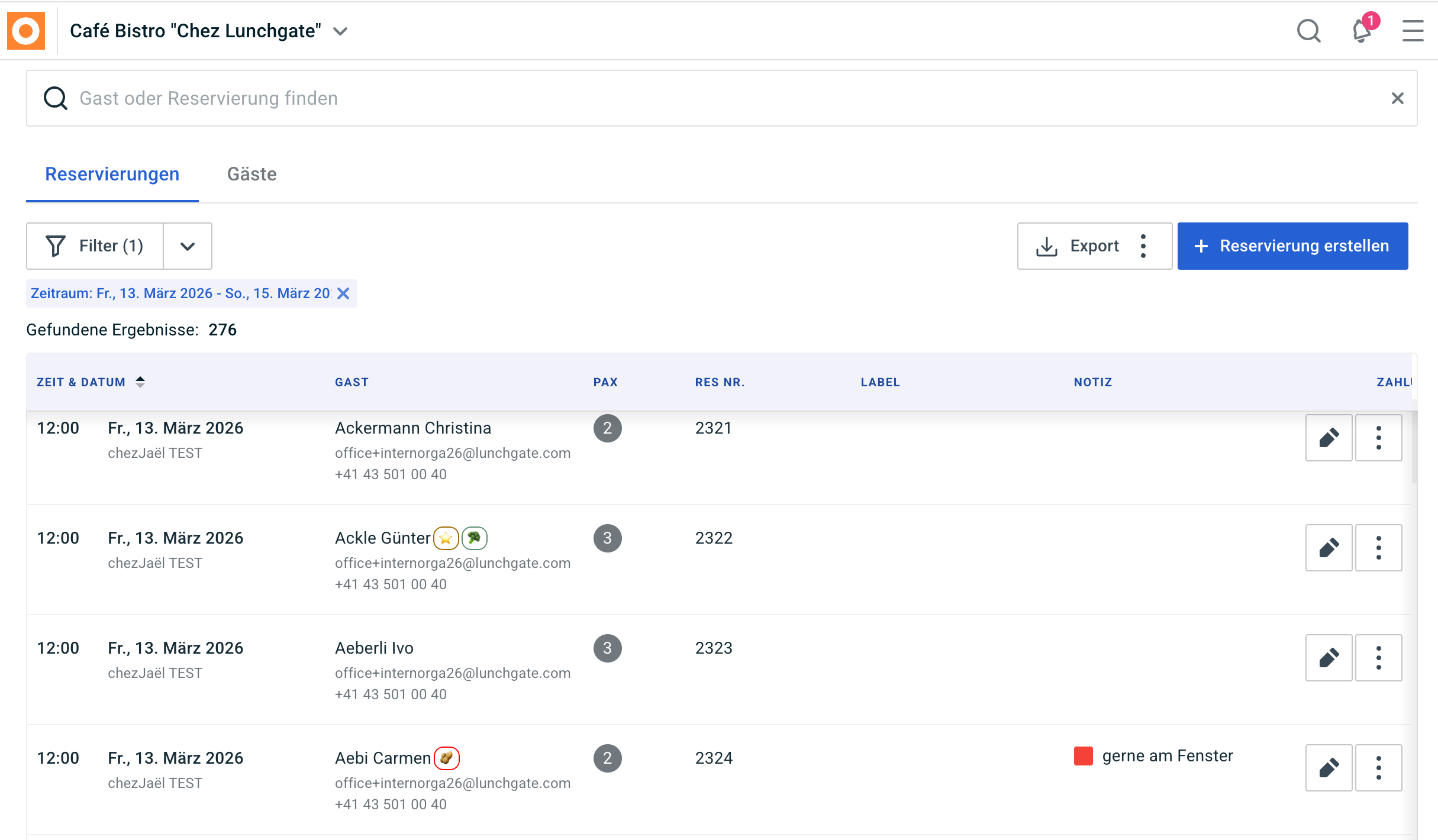
A. Standard view
To keep the overview clear even with a large number of reservations, foratable displays only future reservations from today's date by default.
This ensures you are always working with the currently relevant reservations in your day-to-day operations without having to scroll through past entries.
B. Sorting by date and time
Using the Date and time you can adjust the order of the reservations.
For example, you can choose to display the reservations furthest in the future first.
C. Filtering reservations
If you are looking for a specific set of reservations, various filters are available to you.
You can filter by, among other things:
- Time period
- Start time
- Labels
- Status
- Number of guests
- Restaurant, if you manage multiple locations
- Payment methods
- Experiences
You can reset the filters at any time and make a new selection.
This allows you to quickly find exactly the reservations you need for your current task.
D. Exporting filtered reservations
You can also export the currently displayed selection as a CSV file.
This exports the reservations that match the filters you have set.
This is helpful, for example, if you want to:
- analyze data further
- share internally
- edit in Excel
- want to use for analysis or organizational purposes
D. Managing reservations
You can also make changes to the reservation directly in this view.
Use the edit icon to modify the reservation without leaving the page.
The three dots provide you with further options, such as:
- Activity Log
- Go to reservation
- View guest profile
- Cancel a reservation or reactivate cancelled reservations
Our recommendation
Use filters effectively instead of always working with the entire reservation list.
Especially with a large number of entries, this allows you to quickly create a clear selection – for example, all reservations for a specific experience, a time period, or a defined guest group.