foratable PAY: Reduce no-shows and secure payments
- Secure your reservations with foratable PAY and reduce no-shows by requiring credit card details or prepayments.
- Use PAY strategically, for example for specific shifts, events, group sizes, or first-time guests.
- Protect phone and Google reservations as well, and charge the set amount directly via your reservation book in the event of a no-show.
With foratable PAY you can make reservations more binding and effectively protect your restaurant from no-shows and last-minute cancellations.
You have two options available for this:
- Credit card guarantee: The guest provides their credit card as a guarantee. The card is verified but not automatically charged. A charge is only made if you trigger it, for example in the event of a no-show or a late cancellation.
- Prepayment: The guest pays the amount you have set during the reservation process.
You can use the "PAY" feature selectively for specific shifts, events, or guest groups – for example, only for larger groups or international guests.
Prefer a video?
To the webinar: Setting up and using foratable PAY (in German)
A. Activating PAY
PAY is available as an add-on for the foratable Professional Plan and must first be enabled for your restaurant.
Once our Customer Success team has activated the add-on, you can find PAY in foratable under:
Configuration → Schedule → Payment Plans
There, you can create one or more payment plans.
Why is PAY located in the Schedule?
Because a payment plan is always linked to a shift is assigned. This allows you to precisely control which availability and reservations the credit card guarantee or prepayment should apply to.
This allows you, for example, to use different payment plans for:
- specific shifts
- individual days of the week
- events or special offers
- different group sizes
- various time periods or seasons
The payment plan then automatically applies to reservations within the corresponding shift.
B. Creating a payment plan
Click on Configuration → Schedule → Payment Plans on New payment plan.
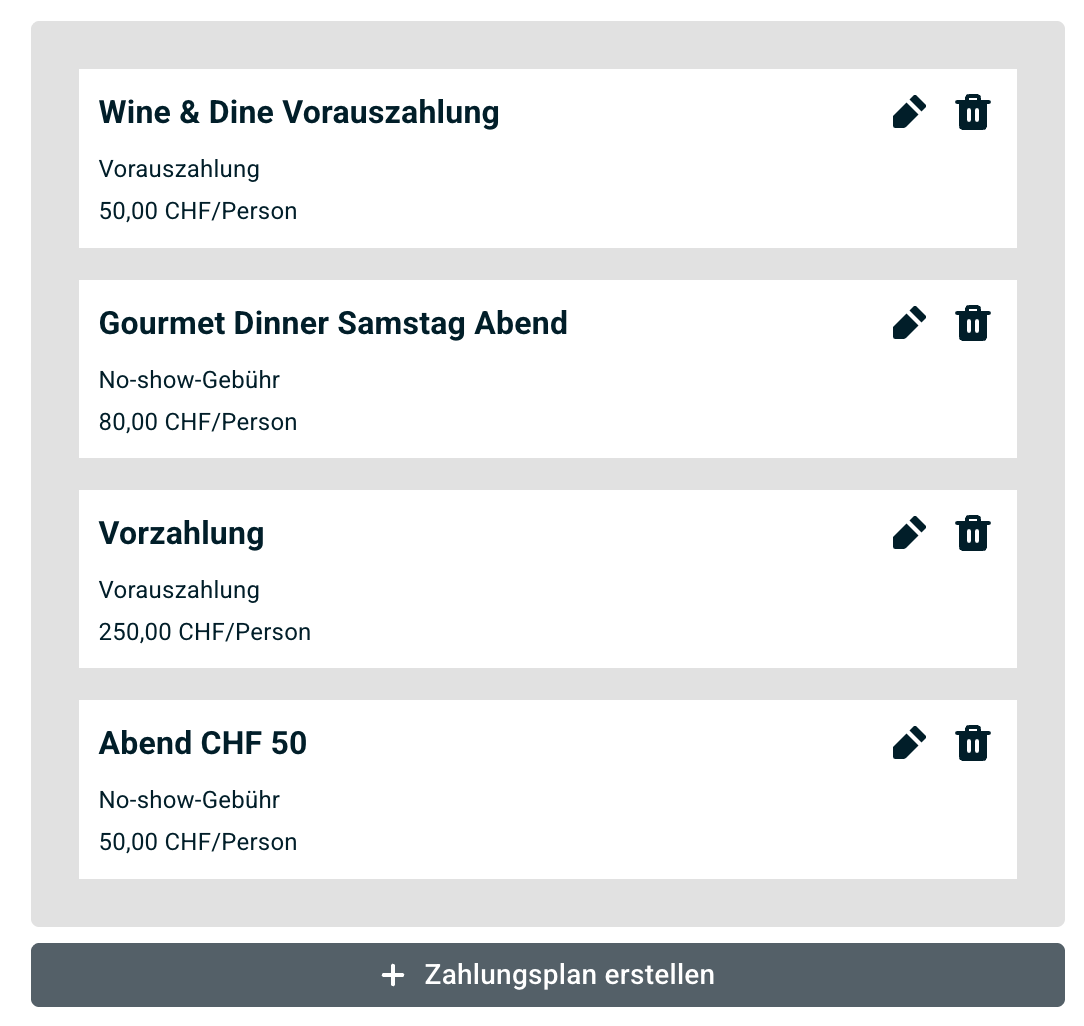
You can edit existing payment plans at any time using the pencil icon.
For each payment plan, you first define the type:
- Guarantee: The guest provides their credit card to secure the reservation.
- Prepayment: The guest pays the specified amount during the reservation process.
Next, configure the terms of the payment plan.
Name
Assign a unique internal name so you can easily distinguish between your different payment plans.
For example:
- No-show protection evening
- Guarantee for international guests
- Prepayment New Year's Eve menu
- Guarantee for 6 or more people
Amount per person
Specify the amount that per person applies.
Depending on the payment plan, this amount is:
- charged in the event of a no-show or late cancellation
- or collected directly as a prepayment
Payment link validity
Define how long this link remains valid here.
If the credit card details or payment are not completed within this timeframe, the reservation will be automatically cancelled.
Our recommendation: Do not set the validity period too long. As long as the payment process is pending, the corresponding seats remain blocked.
C. Determine which guests PAY applies to
You don't have to use PAY for every reservation.
Minimum group size
Define the number of people from which the payment plan should apply.
If you want to require a credit card for every reservation , set the minimum group size to 1.
First-time visitors only
You can choose to require credit card details only from guests who have never visited your restaurant before.
This allows returning guests to continue making reservations without needing to provide a credit card.
Exclude VIP guests
You can exempt guests marked as VIP in your CRM from the credit card requirement.
This allows regular or high-priority guests to continue booking without any additional hurdles.
Exclude domestic guests
You can exempt guests with a domestic phone number from the credit card requirement.
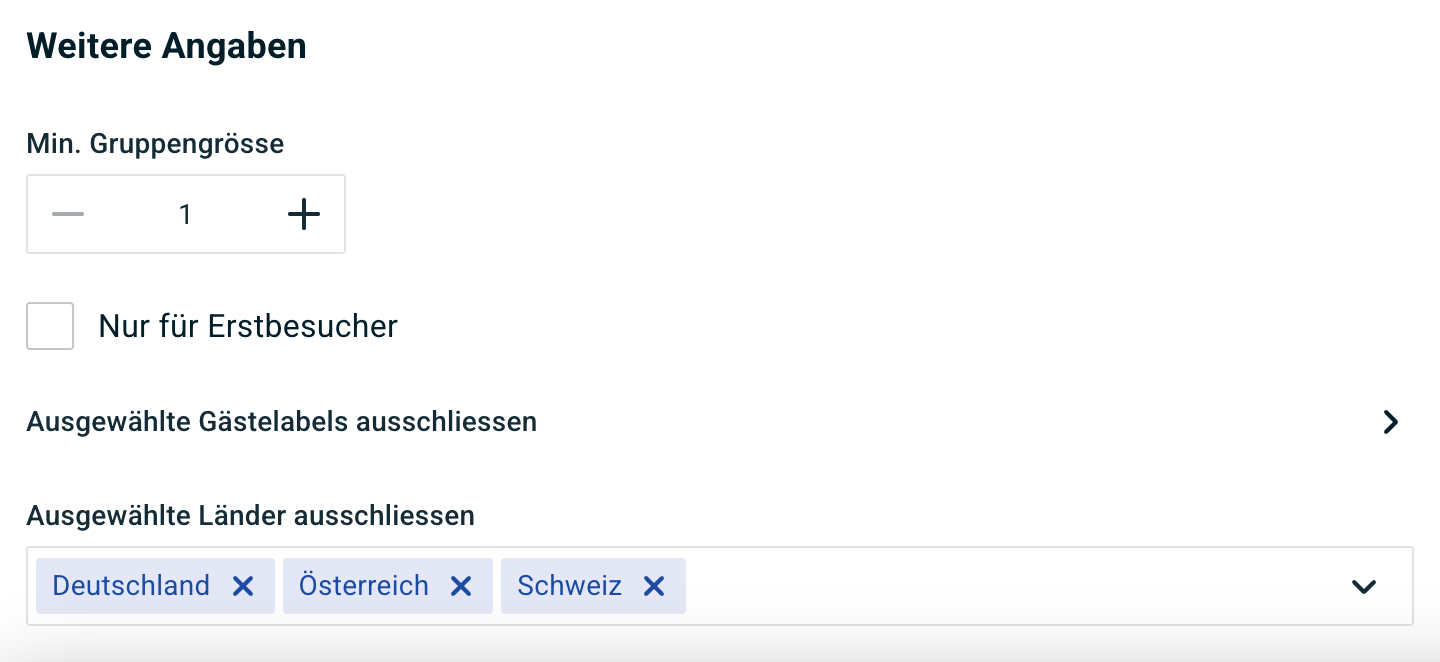
This allows you to use no-show protection specifically for international guests, for example.
This can be particularly interesting for restaurants in tourist areas: The No-Show Report 2026 shows a no-show rate for phone numbers from other countries of 8.20%, compared to2.06% for Swiss phone numbers.
Significant differences can also be seen in tourist destinations: in 2025, for example, the no-show rate in Grindelwald was 6.03%, in St. Moritz it was 4.86% and in Zermatt it was 4.72%.
D. Defining cancellation policies
When a credit card is provided, you can set a deadline by which the guest can cancel free of charge.
You can define the cancellation period under:
Schedule → Edit shift
By default, the deadline is 6 hours before the reservation, but you can adjust it individually.
If a guest cancels after this deadline has passed, you can charge the corresponding fee.
Important for prepayments: If a cancellation is made within the deadline, any prepayment already made is not automatically refunded.
E. Assigning a payment plan to a shift or event
Once you have created your payment plan, you assign it to the desired shift or eventto it.
To do this, open the relevant shift in the schedule and select your payment plan under the advanced settings.
From this moment on, PAY will be automatically integrated into the reservation process for that shift.
This allows you to use different rules, for example:
- only on Friday and Saturday evenings
- only for a special event
- only during peak season
- only from a certain time onwards
The no-show report shows why such targeted use can be useful: from 8 p.m. the no-show rate in 2025 was 3.71%, while in the morning it was 1.18% .
Seasonal payment plans can also be useful; the report explicitly recommends using no-show measures specifically for higher-risk months.
Q. What happens during an online reservation?
If a payment plan is linked to the selected reservation, the guest will be guided through the corresponding PAY step during the reservation process.
Depending on the payment plan:
- they provide their credit card as a guarantee
- or make a prepayment directly
The reservation is only secured once the necessary payment step has been successfully completed.
G. PAY and Reserve with Google
Since 2026 foratable's no-show protection can also be used with Reservations via Google .
If a credit card or payment is required for a reservation, the guest is notified during the Google reservation process and then guided through the corresponding PAY process.
This allows you to continue offering simple reservations via Google while still applying your PAY rules.
H. PAY for manual reservations
PAY also works for reservations that you receive, for example:
- by phone
- by email
- or through other channels outside the widget
and then enter manually into foratable.
To do this, create the reservation as usual and select the appropriate payment plan.
Then activate sending via email or SMS.
The guest will receive a payment link and can use it to:
- save their credit card details
- or complete the prepayment.
Until this step is completed, the reservation remains provisional.
If the payment link is not used within the specified timeframe, the reservation will be automatically cancelled.
I. Charging a no-show
If a guest does not show up, set the corresponding reservation in the reservation book to No-show.
A pop-up will then appear.

The checkbox for the charge is enabled by default. If you confirm the process, the defined amount will be charged.
If you would like to make an exception and not charge the guest, you can uncheck the box before confirming.
Important
- A reservation can only be charged onceby the team.
- Payments that have already been processed can be reversed via our support teamby the team.
- If you change the number of guests for the reservation, the amount to be charged will adjust accordingly.
J. Invoices after a charge
Optionally, you can automatically send your guests an invoice by email after a charge has been made.
Invoicing is disabled by default.
In the invoice details, you can define, among other things:
- Invoice issuer
- Address
- VAT number
- VAT rate
- Billing email
You can also activate automatic invoice delivery there.
Q. How much does foratable PAY cost?
Q. Is PAY worth it for your restaurant?
An empty table doesn't just mean an immediate loss of revenue. No-shows also make it harder to plan for staff, kitchen operations, and capacity. The 2026 No-Show Report therefore continues to describe no-shows as a significant economic challenge for restaurants.
Whether PAY is worth it for your business depends on factors such as:
- your average number of no-shows
- your average revenue per guest
- which shifts have the highest risk
- how strategically you use PAY
With our ROI Calculator you can enter your own metrics to estimate the impact that protection against no-shows can have on your business. The calculator takes into account factors such as the number of guests, no-show guests, and average revenue per guest.