Caller ID: Recognize calls directly in the foratable application
- Incoming calls are detected directly in foratable
- Known guests are automatically linked to their CRM profile
- New guests can be created directly from the call
- Requires a compatible digital telephone system
With the Caller ID incoming calls become visible directly in your foratable reservation book.
This means your service team no longer has to manually search for guests in the system during the rush hour. foratable recognizes the phone number of the incoming call and displays the relevant guest information immediately. This saves time, reduces stress during service, and allows for a more personal greeting over the phone.
The Caller ID is included in the foratable Professional plan plan.
Prefer a video?
→ To the webinar: Caller ID (in German)
A. Why are telephone reservations so important?
Even though more than half of all reservations are now made online, the telephone remains a particularly important reservation channel.
Our Guest Behavior Report 2026 shows:
- 33.1% of all reservations are made by phone.
- These reservations simultaneously account for 48.1% of all reserved guests.
- In contrast, online reservations account for 51.8% of reservations, but 42.2% of guests.
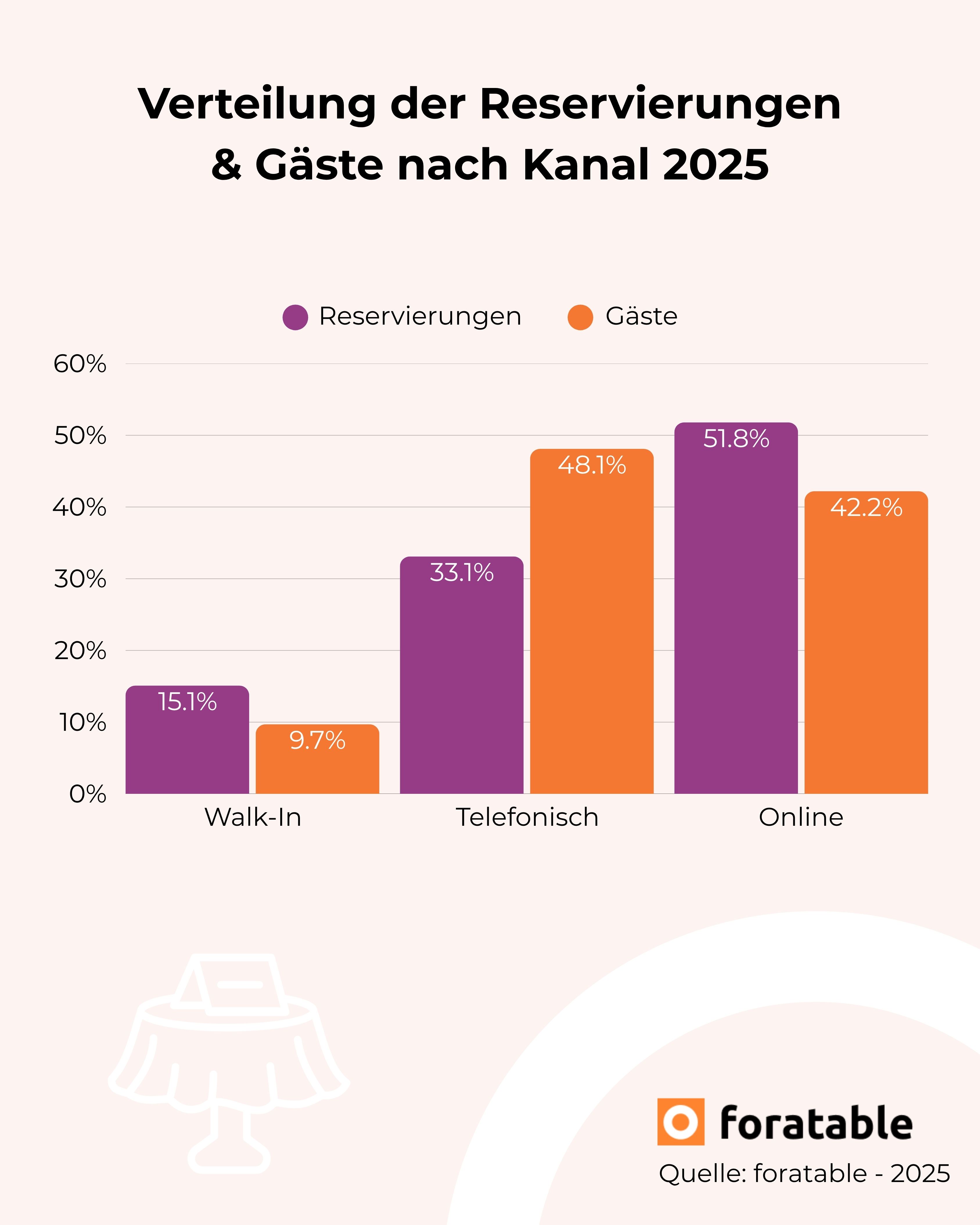
The reason: The telephone is used particularly often for larger groups reserved.
Almost half of all guests who book by phone – 47.9% – are part of groups of 10 or more people.
The phone also plays a key role in last-minute bookings: for reservations made less than an hour before arriving at the restaurant the share of phone bookings is 3.3%, compared to 1.6% online.
In situations like these, your team needs to be able to react quickly. Caller ID helps you identify the caller immediately, pull up existing guest information, and start the reservation process right away.
B. How Caller ID works
When a guest calls your restaurant, a phone icon appears in the top right corner of the foratable application.
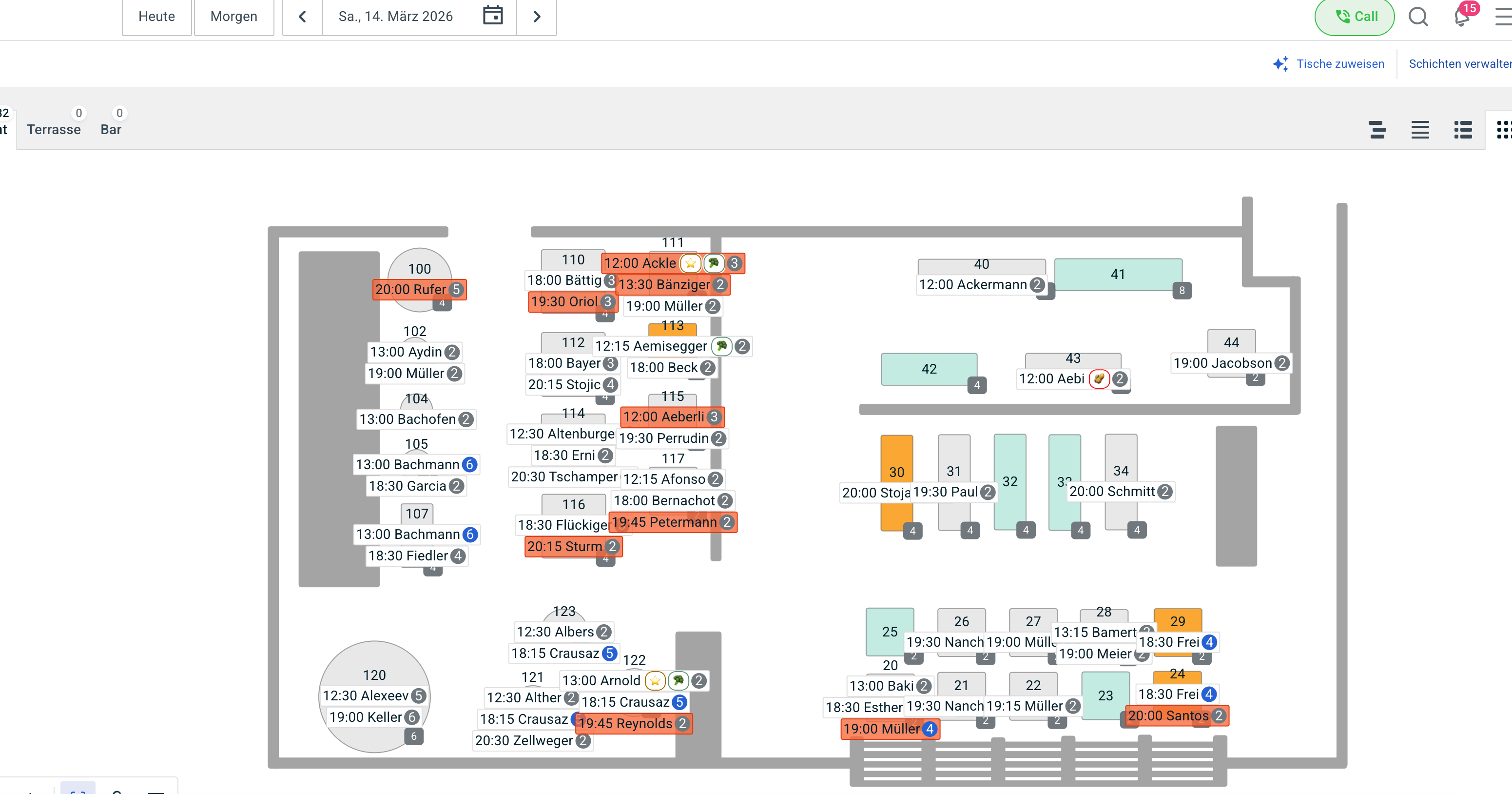
foratable recognizes the incoming phone number. If the number is already linked to an existing guest profile, the corresponding guest is displayed immediately. This lets you know who is calling before or during the conversation.
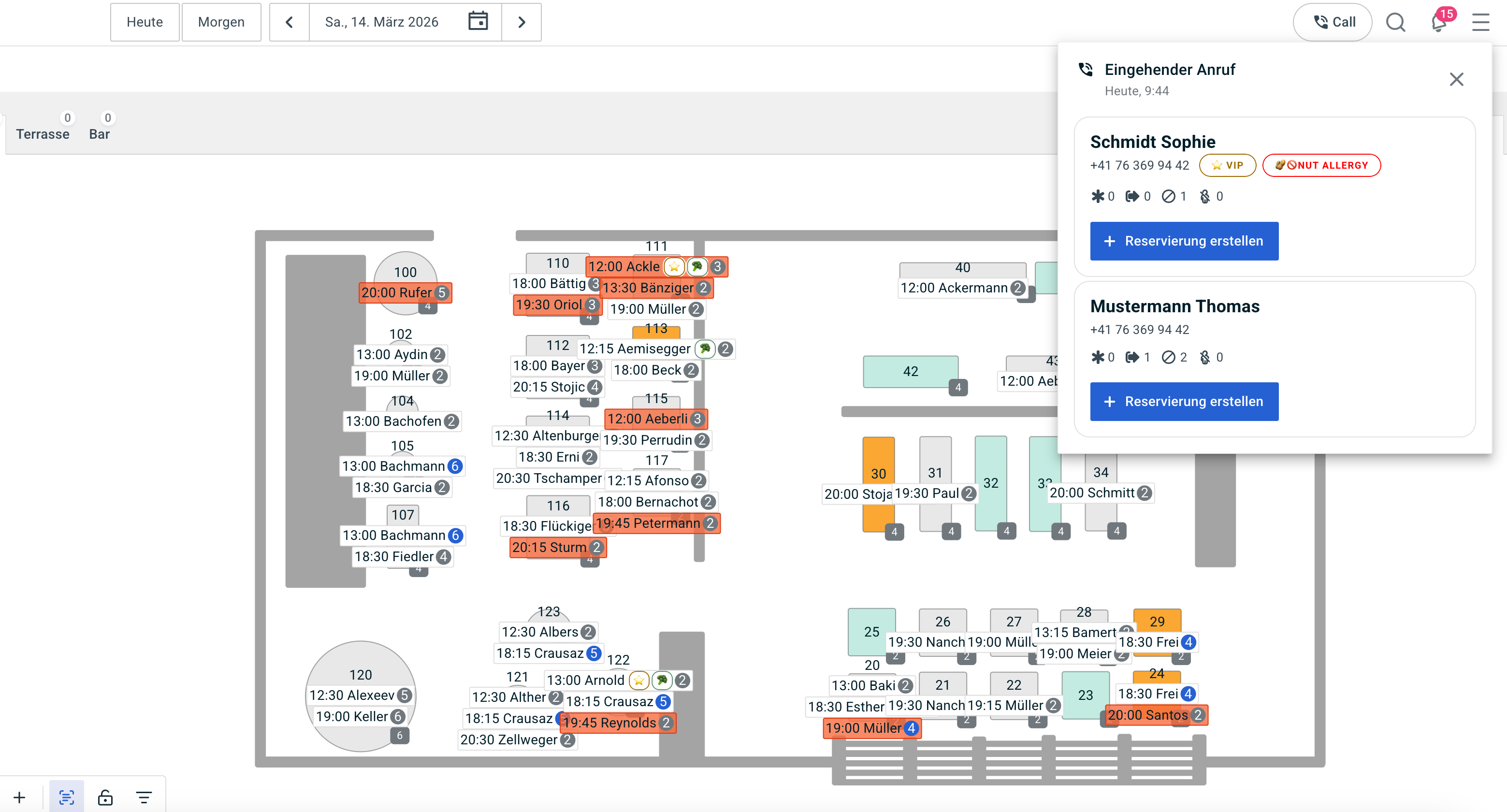
If the phone number is not yet assigned to a guest, you can create a new CRM entry from the incoming call and then record a reservation.
Important: Calls with suppressed or anonymous phone numbers cannot be identified and therefore cannot be displayed.
C. Recognize familiar guests instantly
If a guest already has a profile in your restaurant — for example, from a previous online reservation — foratable will immediately show you their existing guest information.
You can see, among other things:
- Guest name
- Guest labels
- Upcoming reservations, including reservation labels
- Past reservation history
- Notes and information from the CRM
- Date of birth, if provided
- Additional comments from your service team
These could be notes such as:
- Preferred table
- Favorite dish
- Allergies
- Special requests
- Personal preferences
This way, your team has important information right at their fingertips and can provide a more personalized guest experience.
D. View guest revenue and consumption
If your restaurant also uses a POS integration , additional information from past restaurant visits can be displayed in the guest profile.
These include, for example:
- Total revenue to date
- Consumption details from past visits
This gives your team additional context about the guest while they are still on the call.
→ In the Marketplace you will find the available POS integrations.
E. Create a reservation directly from the call
If a guest wants to book a table by phone, you can create a new reservation directly from the call or the open guest profile.
If the guest is already in your system, their details are immediately available, so there is no need to search for or re-enter them.
With just a few clicks, you can:
- Select the date
- Set the time
- Add the number of guests
- Assign a table if necessary
- Save the reservation
If the caller is not yet in your CRM, you can create a new guest profile directly from the call first.
This turns an incoming call into a reservation in the system without any detours.
F. Where can you find your calls?
You can find all incoming calls in foratable in the Inbox via the bell icon in the top right corner.
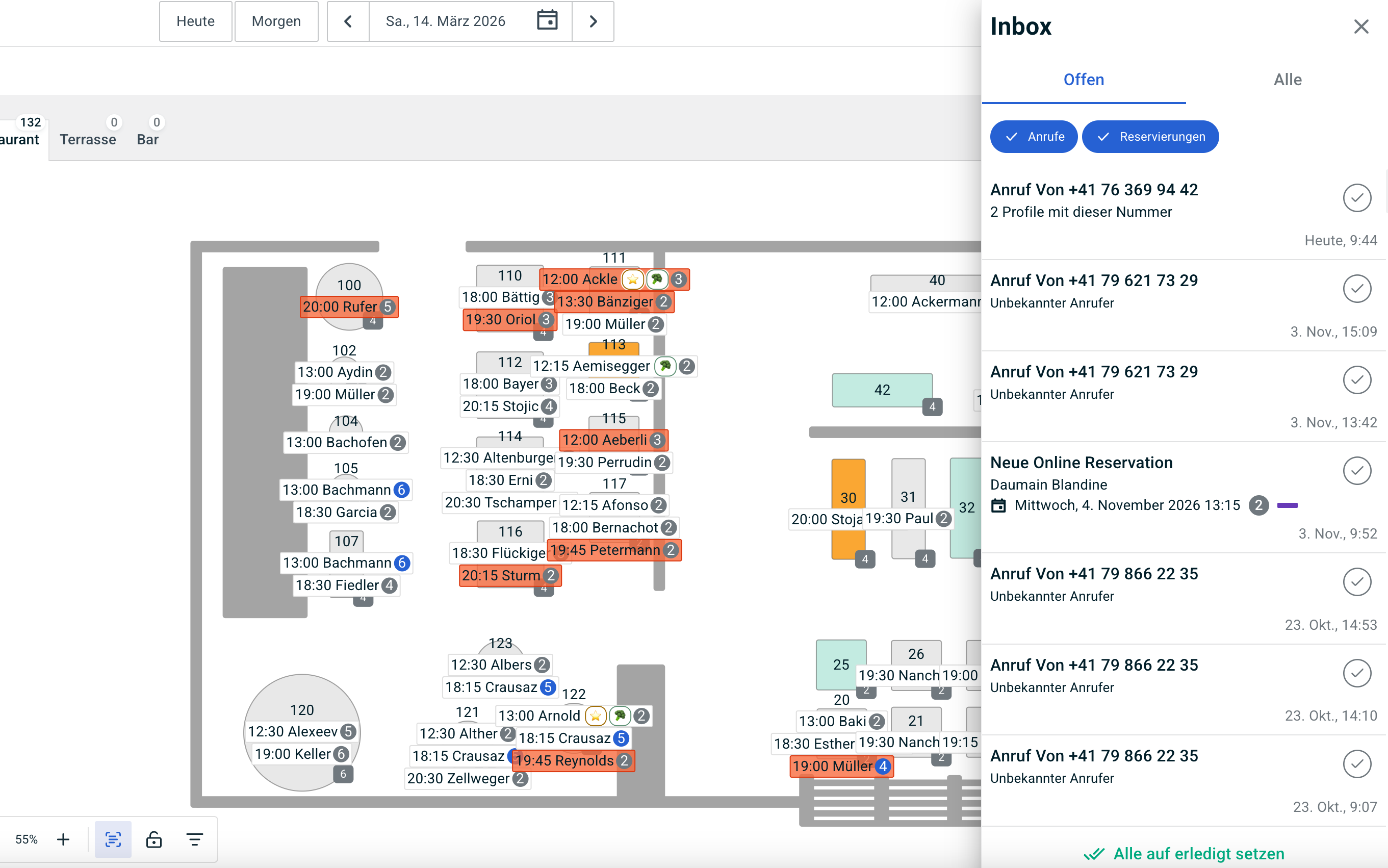
The inbox consolidates various activities in one place.
These include, for example:
- incoming calls
- new online reservations
- Reservations via Google
- Cancellations
This allows your team to see at a glance which new activities have come in.
G. Processing open calls
New calls initially appear under Open.
Once you have processed a call, you can mark it as completed using the small check mark .
It will then disappear from the list of open activities.
However, the entry is not deleted.
Under All, the call remains visible. This allows you to track which calls have been received at a later time.
H. Filtering the inbox
In the inbox, you can select which activities you would like to see.
For example, you can filter by:
- Calls
- Reservations
- Cancellations
- multiple activity types simultaneously
This allows your team to customize the view to their specific workflow and quickly identify which activities are still pending.
I. What are the technical requirements?
For Caller ID to work, your restaurant requires a compatible digital phone system.
It is important to distinguish between phone system and phone provider.
Phone system
The phone system technically manages the incoming calls to your restaurant.
For Caller ID, a compatible digital or virtual phone system must be used. This is the only way to trigger the necessary webhook for incoming calls and transmit the phone number to foratable.
In the foratable Marketplace you will find phone systems that can already be connected to foratable.
Phone provider
The phone provider, on the other hand, simply provides your phone connection or service line.
Which phone provider is behind your digital phone system is not critical for Caller ID.
What matters is that the phone system used is compatible with foratable.
J. How is Caller ID activated?
You need to set up Caller ID cannot be configured in foratable yourself.
If you would like to use this feature, please contact our Customer Success Team.
Together with you, we will first check whether your digital telephone system is compatible with foratable.
Our Customer Success Team will then handle the technical setup and connect your telephone system to foratable.
Once the connection is established, Caller ID is permanently active in your foratable application.
You do not need to activate the feature separately for individual shifts or services.
This distinguishes Caller ID from, for example, IVR, which can be specifically linked to shifts and corresponding telephone hours.
With Caller ID, however, the following applies: Once the telephone system is connected, incoming calls are automatically detected and displayed in foratable.
Our recommendation
Caller ID is particularly helpful for restaurants with a high volume of telephone reservations – especially since larger groups and last-minute bookings often come in over the phone.
To get the most out of this feature, we recommend:
- Recording your guests' phone numbers correctly
- Keeping guest profiles as complete as possible
- Using guest labels strategically
- Adding helpful CRM notes
- regularly marking completed calls in the inbox
- using sales and consumption data together with guest profiles if a POS integration is available
The better your guest data is maintained, the more context your team has the moment the phone rings.