Configure communication
- Under Communication manage your email and SMS notifications, templates, sending rules, and the design of your guest communication
- You can customize communication by notification type, language, and shift, and also publish guest feedback on Lunchgate
You can find your communication settings in foratable under Configuration → Communication.
Here you determine how emails and SMS messages regarding reservations are sent and how your messages are visually designed.
In this section, you can also decide whether guest feedback should be published on the Lunchgate profile of your restaurant .
Prefer a video?
→ Go to the webinar Communication Settings & Sending Domain (in German)
A. Communication Settings
Default language for guests
Under Default language defines which language is used by default for communication with your guests.
This setting serves as the starting point for the corresponding email and SMS templates.
Emails to guests
Here you define the basic settings for email communication with your guests.
Depending on the reservation status, confirmations, changes, reminders, or cancellations are automatically sent using the appropriate template.
You can also decide here whether to display the cancellation link in the footer of your emails. This allows guests to manage their reservations online independently. You can set the desired cancellation period in your shifts.
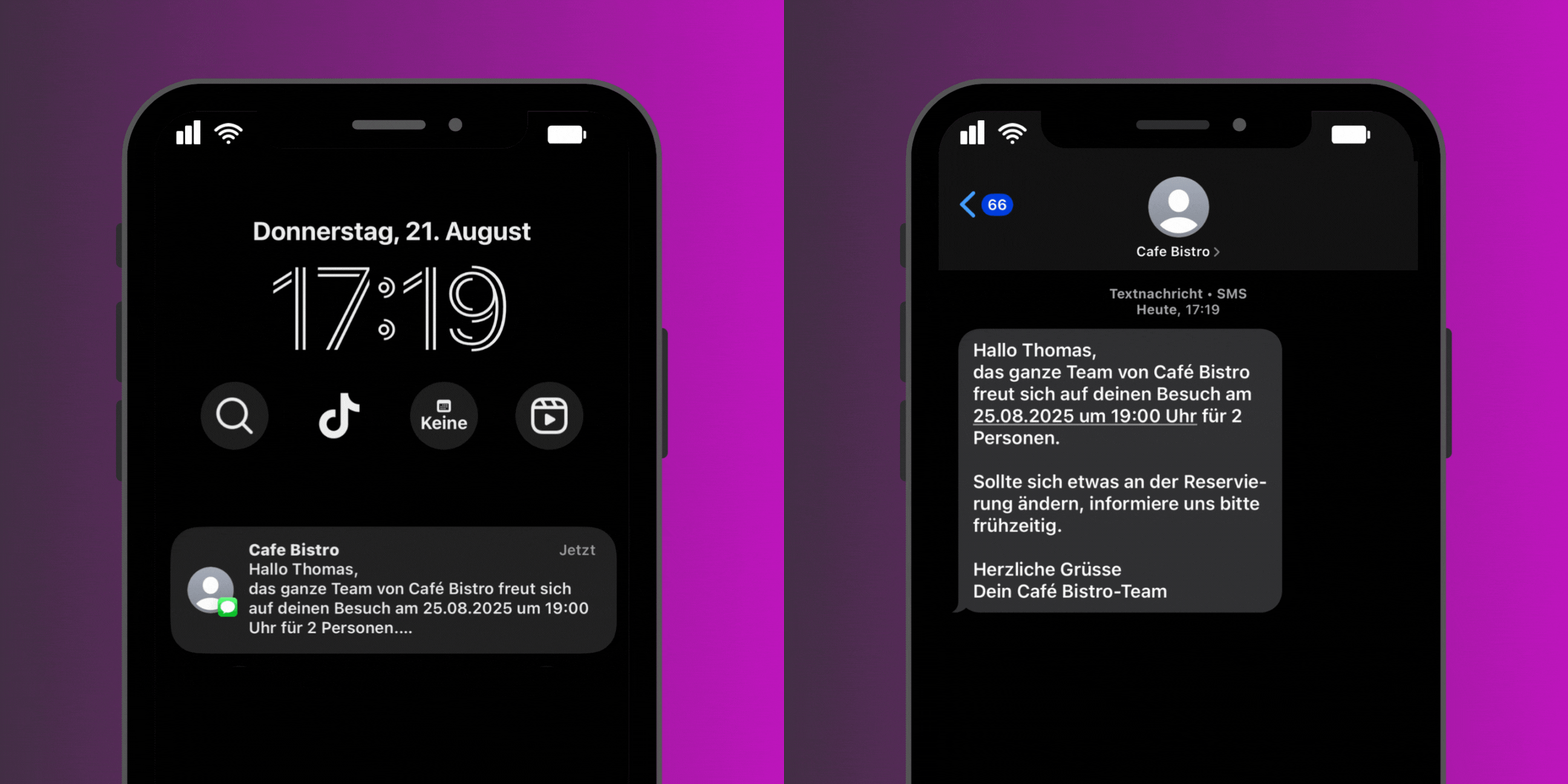
SMS to guests
You can also manage SMS communication individually.
You can generally activate or deactivate SMS and determine for which notification types your guests should receive an additional SMS.
By default, all available SMS communications are activated.
This allows you to decide for yourself whether your guests should also be informed via SMS for confirmations, reminders, or other changes, for example.
The sender name for your SMS can be personalized here, so that your guests can immediately identify the SMS as coming from your restaurant.
B. Emails to your restaurant
In this section, you will find the settings for emails to your restaurant.
Here you can define which notifications your restaurant should receive and how internal communication regarding reservations is organized.
C. Publish feedback on Lunchgate
You can determine whether guest feedback should be published on Lunchgate profile of your restaurant .
This allows you to use guest feedback not only internally but also to increase your restaurant's visibility on Lunchgate.
D. Design email layout
Under Email design allows you to visually adapt your email templates to your restaurant's corporate identity.
%20Bild%20Frei%20konfigurierbar%20(1).gif)
Logo and background color
First, upload your restaurant logo . This will be displayed in the header of your emails.
You can also define a background color .
Make sure that the logo and background complement each other well and that your logo remains clearly legible at all times.
Colors and design
For even greater personalization, further design options are available to you:
- Accent color
- Content color
- Heading font color
- Paragraph font color
- Link color
- Reservation number font and background color
- Reservation details colors
- Footer design
Here you can determine the look of your emails in great detail.
Our recommendation: Align the design with your restaurant's corporate identity, but always ensure good readability. Especially for reservation confirmations, the rule is often: Less is more.
Key information such as the date, time, number of guests, and reservation details should be visible to your guests at a glance.
E. Use promo banners
You can also include a promo banner further down in your emails and link it to a URL.
This is perfect for drawing attention to things like:
- an upcoming event
- a special menu
- a Sunday brunch
- a seasonal offer
- another restaurant promotion
Tip: If your banner is only relevant for a certain period, set a reminder to remove or replace it once the promotion ends.
F. Personalize email templates
Dedicated email templates are available for the various steps involved in a reservation.
You can edit the following templates:
- Confirmation
- Change
- Reminder
- Feedback request
- Cancellation
- Request declined
- Request unanswered
- No-show
All templates can be maintained in four languages:
- German
- French
- Italian
- English
This allows you to maintain both your tone of voice and your corporate identity consistently across all guest communications.
Don't want to write your own copy? No problem: our standard templates are available to you at any time.
G. Advanced settings
Under Advanced allows you to define the default sending rules for your communications.
For each notification type, you can specify:
- whether a email or SMS is sent by default
- which template should be used by default
These settings serve as the default for your business.
However, they can be adjusted as needed:
- per shift
- or for manually entered reservations
be overwritten.
For example, you can use different communication for a specific event or a special shift than you do for your regular restaurant operations.
Our recommendation
Don't just use communication as a technical reservation confirmation; use it as part of the guest experience.
Check the following in particular:
- Is the correct default language set?
- Are the desired SMS communications activated?
- Does the design match your restaurant?
- Is your logo clearly legible?
- Are reservation details immediately recognizable?
- Are all texts maintained in the required languages?
- Does the tone of voice match your restaurant?
- Are promo banners still up to date?
- Are your standard sending rules for email and SMS appropriate?
The more consistent your communication is, the more professional and familiar the entire reservation process will feel to your guests.