Users & Permissions
- foratable features the following roles: Admin, Manager, and Team Member
- Team members can be uniquely identified PIN code using a personal
- Permissions should be reviewed regularly and adjusted to match roles and responsibilities.
With permissions in foratable, you can define which actions your staff members are allowed to perform and which areas are visible to them.
This allows you to tailor your reservation book to your internal processes while keeping track of who made which changes.
Prefer a video?
→ To the webinar:Permissions and team management (in German)
Requirements
To manage permissions, you must be logged in as an admin.
Then, open the Configuration and go to the Permission section.
To use permissions, you need:
- a reservation book subscription
- the activated PIN code feature
If the PIN code feature is not yet enabled for your account, our support team can activate it for you.
A. Permission levels
foratable has three permission levels:
Admin
The admin has unrestricted access to all areas and functions.
Only admins can set up and change permissions. Therefore, the area section. is visible exclusively to admins.
Manager
Managers can be granted access to specific actions and areas as needed.
This role is suitable for people in leadership positions who need more rights than a team member but should not have access to all settings.
Team member
Team members only receive the permissions they need for their daily work.
You can individually determine:
- which actions are permitted
- which areas are visible
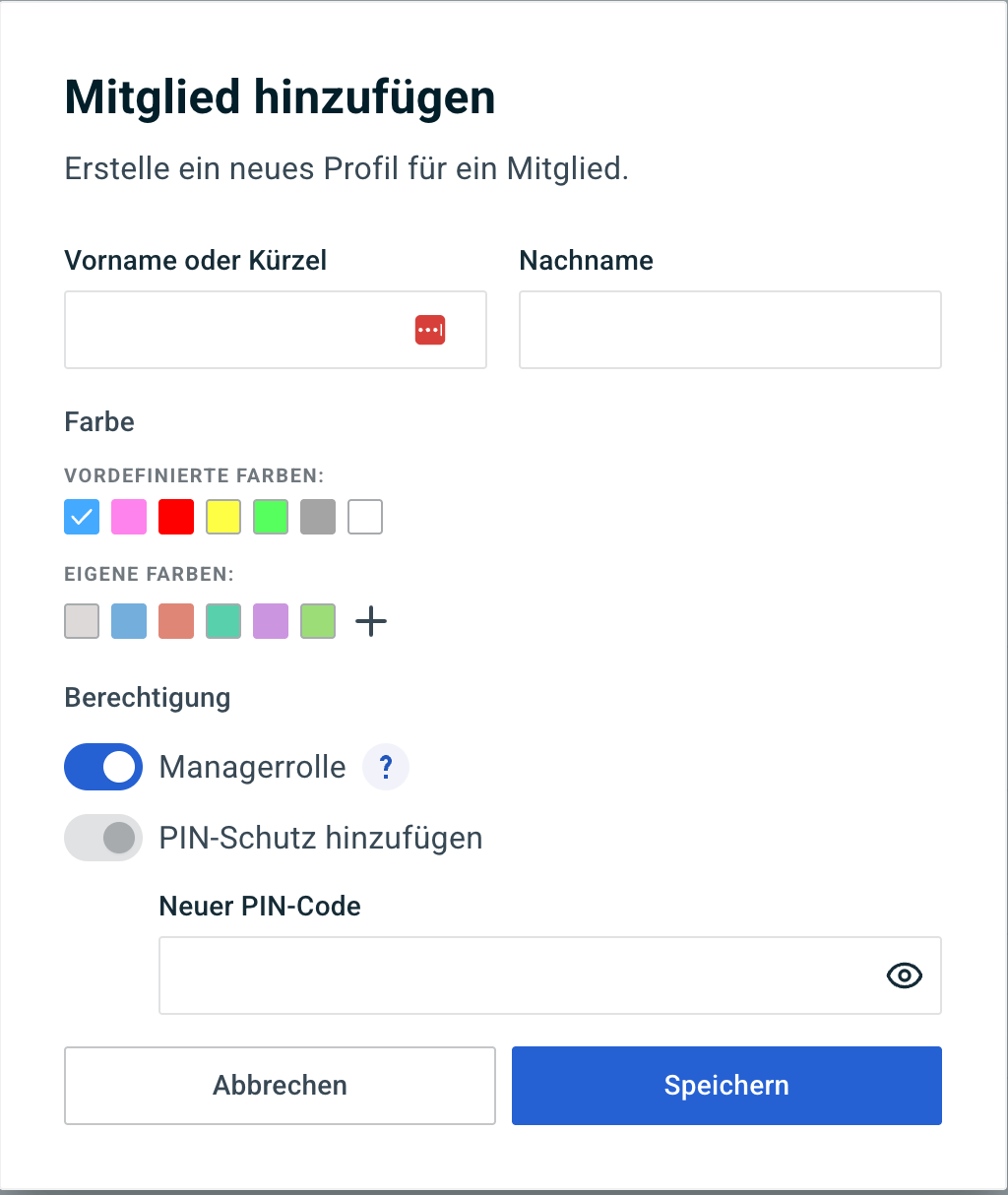
E.g. adding team members
Under Team you can add your employees to foratable.
For each team member, you can define the following information:
- Name
- Color
- Permission level
- PIN code
The color helps you to visually distinguish team members within the system.
Your personal PIN code allows the system to identify who is currently working in the reservation book. This is particularly important for tracking changes in the Activity Log.
C. Switching or logging out team members
If multiple employees use the same device, the logged-in user can be switched at any time.
- Click on the name of the currently logged-in team member in the top right corner.
- Select the next team member.
- Log in with your personal PIN code.
This is especially convenient during shift changes or when multiple employees share the same device.
D. Tracking changes
With team management, you can track who has made changes to a reservation.
When creating, editing, or deleting a reservation, the system displays who last modified it.
Via the Activity Log you can then view all actions related to the respective reservation.
This allows you to track the following at any time:
- who created a reservation
- who made changes
- what changes were made
- who deleted or adjusted a reservation
Our recommendation
Review permissions regularly – especially when:
- new employees join the team
- employees leave the team
- responsibilities or roles change
Only grant the permissions that are actually required for the respective role.