Edit or cancel a booking
- Existing bookings can be edited and saved directly in the foratable application.
- Cancelled bookings can be reactivated, and guests can be notified by email or SMS if needed.
In the foratable application , you can adjust, cancel, or reactivate existing reservations at any time as needed.
A. Edit reservation
Open the desired reservation in the application.
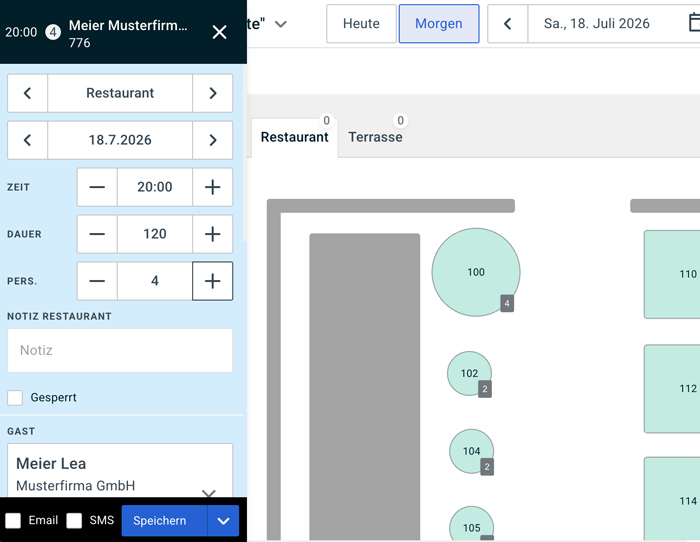
You can adjust details including:
- Date
- Time
- Number of guests
- Guest contact details
- Assigned tables
As soon as you make a change, the button Save.
Click Saveto apply your changes.
Depending on your communication settings, the guest can then be automatically notified of the change.
B. Cancel reservation
Open the desired reservation and click on the in the detail view. blue "Save" button.
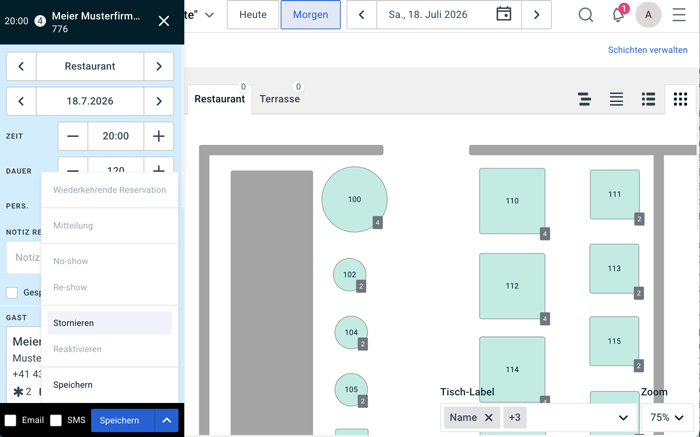
If the reservation is already assigned to a table, this table assignment will be removed upon cancellation.
The cancelled reservation remains visible in the foratable application and can be reactivated if necessary.
C. Informing the guest about the cancellation
If you would like to inform the guest about the cancellation, you can select the corresponding options for email and/or SMS when cancelling. This ensures the guest automatically receives a notification regarding the cancellation.
D. Reactivating a cancelled reservation
A cancelled reservation can be reactivated at any time. To do so, open the cancelled reservation and reactivate it directly in the detail view.