Reserve with Google: Be bookable directly via Google
- Manage your Google availability directly via your shifts
- Manage Google reservations centrally in your foratable reservation book
- If needed, use foratable PAY to require credit card guarantees or prepayments for Google reservations as well
With Reserve with Google guests can book a table with you directly via your Google Business Profile – without having to open your website or booking widget first.
A blue button will appear on your Google profile for this purpose: "Reserve a table".
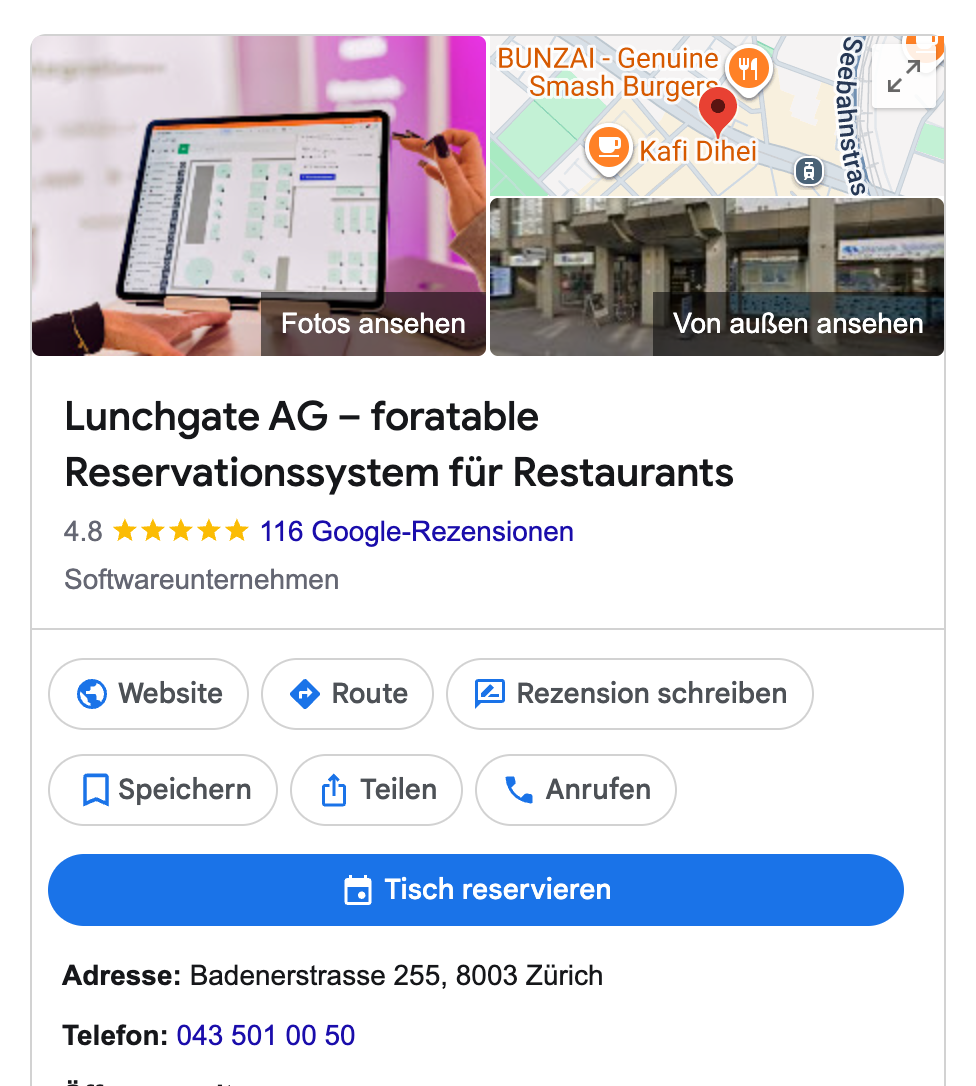
The reservation is synchronized directly with foratable and then appears in your reservation book.
Reserve with Google is already included from the foratable Basic plan plan.
A. How does Reserve with Google work?
Guests can find your restaurant via, for example:
- Google Search
- Google Maps
and start a reservation directly via Google.
The guest then selects:
- Number of guests
- Date
- Time
Google then checks the availability transmitted by foratable. If the desired time is available, the guest can complete the reservation directly via the Google interface.
The reservation is automatically transferred to foratable and appears in your reservation book.
B. Google as a reservation channel
Google is no longer just a channel for guests to discover restaurants. Data from our Guest Behavior Report 2026 shows that Google already generates a significant share of reservations.
- 7.2% of all reservations are made via Google.
- This means that 5.8% of all guests come to the restaurant through this channel.
- A Google reservation includes an average of 3.0 people.
This means that around one in seven online reservations is already made via Google .
Reservation behavior is very similar to other digital channels: Google is primarily used to book small to medium-sized groups.
The big advantage for restaurants: guests can already find information on Google such as:
- Opening hours
- Reviews
- Photos
- Menus
- Location
With Reserve with Google, the path from searching for a restaurant to making a reservation becomes even shorter. Guests can book directly where they have already discovered your restaurant.
→ To the guest behavior report
C. What does your restaurant need?
To make your restaurant bookable via Reserve with Google, you need a Google Business Profile for your restaurant.
In addition, you must have corresponding online availability set up in foratable.
Your are particularly important here. Shifts: This is where you determine whether a shift should also be offered via the Google reservation channel.
UnderConfiguration → Schedule you can define which online channels each shift should be bookable through.
To do this, open the desired shift and go to Custom online channels.
There, you can specify, among other things, whether the shift should be bookable via:
- your foratable widget
If Google is not displayed as an option there, your Google Business Profile is not yet linked to foratable. In this case, please contact our Customer Success Team. We will check the connection and activate Reserve with Google for your restaurant.
D. Activating Reserve with Google
If you would like to use Reserve with Google, please contact our Customer Success Team by phone or email.
We will then activate the free integration for your restaurant.
Your restaurant will then be connected to Reserve with Google, and your corresponding availability can be synced with Google.
Note: It may take some time for changes and new availability to appear on Google.
E. Configuring availability for Google
You can control which tables can be reserved via Google using your Shifts in the schedule.
For each shift, you can define:
- whether Google is active as a reservation channel
- what capacity is available online
- minimum and maximum group size
- Reservation times
- Duration of stay
- Reservation lead time
This allows you to selectively enable Google only for the shifts and availability that you actually want to offer online.
F. What happens after a Google reservation?
As soon as a guest has successfully made a reservation via Google, it will automatically appear in foratable.
Manage your Google reservations centrally in the same system alongside your other bookings.
You can also find new online reservations made via Google in your inbox via the bell icon in the top right corner.
G. Difference between Reserve with Google and your widget link on Google
Two different reservation options can be displayed on your Google Business Profile.
Reserve with Google
With Reserve with Google the guest makes a reservation directly through the Google interface.
The blue "Reserve a table" button opens the Google reservation process.
Availability is pulled from foratable, and completed reservations are automatically synced back to foratable.
Direct link to the foratable widget
Additionally, you can add your direct foratable widget link to your Google Business Profile.
You can find this link under:
Configuration → Widget → Embed Codes
In your Google Business Profile, you can add or update it under:
Bookings → Links to your online booking tools
add or update.
When a guest clicks this link, they make a reservation using your own foratable widget.
Important: Reserve with Google and the direct widget link are two different reservation channels. You can use both in parallel.
H. Difference between Reserve with Google and the foratable widget
When a reservation is made via your foratable widget , the guest goes through your individually configured reservation process. LINK
There, you can, for example:
- use your own logo
- define your brand colors
- display a welcome message
- integrate a newsletter opt-in
- display terms and conditions
- use other custom widget settings
With Reserve with Google, the reservation takes place directly within the Google interface.
The big advantage: guests can book right where they found your restaurant, without having to switch to your website.
I. Effectively reduce no-shows, even with Google reservations
No-shows cannot be completely prevented. However, with foratable, you can reduce the risk, for example with:
- Credit card guarantee
- Prepayment
Since 2026, you can also use foratable's no-show protection for Reservations via Google .
If a credit card or prepayment is required for the selected reservation, the guest is notified during the Google reservation process.
They are then guided through the corresponding payment process and can:
- provide a credit card as a guarantee
- or make the specified prepayment
This allows you to continue offering easy reservations via Google while better protecting yourself against no-shows and last-minute cancellations.
Note: Credit card guarantees and prepayments are features of foratable PAY. PAY is available as an add-on for the foratable Professional plan.
J. The Google button is not displayed
If your restaurant has been enabled for Reserve with Google, but the blue button "Reserve a table" does not appear, first check the following:
- Is your Google Business Profile set up correctly?
- Are the restaurant details provided accurate?
- Do you have future shifts with online availability?
- IfGoogle enabled as a reservation channel for these shifts?
- Is there still online capacity available?
Changes made on Google are not always reflected immediately.
If the button still does not appear after some time, our Customer Success Team will be happy to help.
Our recommendation
Reserve with Google is an additional reservation channel that complements your own foratable widget.
Pay particular attention to the following:
- your shifts are up to date
- Google is enabled for the desired shifts
- your online availability is set appropriately
- your Google Business Profile is up to date
- your direct widget link is also correctly set up on Google
- you use PAY specifically for high-risk reservations when needed
This allows guests to book your restaurant exactly where many start their search: directly on Google.